
I’ve gotten this question a few times from different clients. They want to know if it’s possible to create a default profile that every client in their lab opens AutoCAD with. So basically, if you were in a classroom environment, the teacher would create a modified profile with plot styles, crosshair settings, toolbars, etc. and every single client in the classroom would have the same profile whenever they launched AutoCAD. This is possible to do, and this post is going to outline how to do it.
The first thing you will need to do is create a custom profile that you want all of your computers to use whenever they boot up AutoCAD. To do this; follow these steps:
- Open up AutoCAD
- Click the “A” icon at the top-left of the program
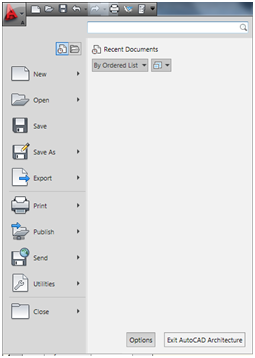

- Click the “Options” button at the bottom of the drop-down menu
- Click the “Profiles” tab in the options window that comes up
- Click “Add to List…” on the right side
- Put in a name and description for the profile and click “Apply & Close”
- On the profile list, highlight the new profile you made and click “Set Current” on the right. This makes sure that your test profile is the active profile being modified.
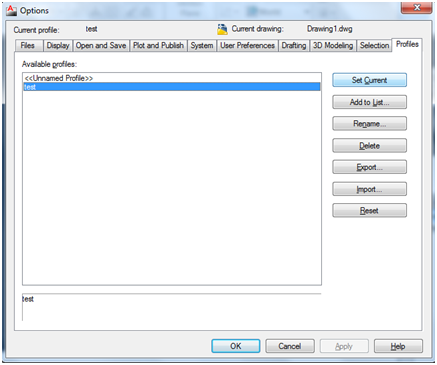
- Click “OK” at the bottom of the options window.
Now that your new profile is active, you can modify it however you need it to be. This means you can change menu bars, drawing space, property windows, plot styles, etc.
Once you’ve made your changes, you’re now ready to export your profile to an ARG file that can be used to tell the program to startup with a specific profile. To create your ARG file, follow these steps:
- Click the AutoCAD Drop-down at the top-left of the program.
- Click “Options”
- Click the Profiles tab in the Options window
- Select your modified profile and click “Export”
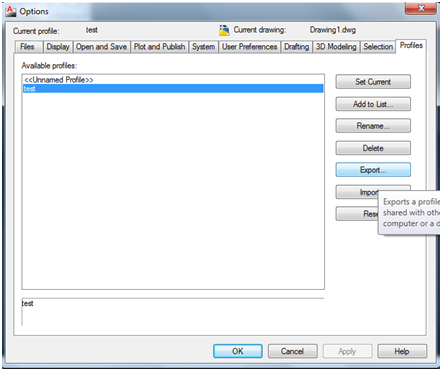
- Choose a location to save the file to
- Click OK
Now that you have your ARG file saved to a location, you can now tell your program to boot up to your modified profile every time you run AutoCAD.
Here’s how you modify your shortcut to run a default profile:
- Locate your AutoCAD shortcut and create a copy of it.
- Right click on the copy and click “Properties”.
- Under the “target” box, you want to put a space then /p at the very end of the string of text. After /p, put a space then put quotation marks. Within the quotation marks, you want to put the file path of the ARG file that you created. For example, the final thing should say something like this: “C:Program FilesAutodeskAutoCAD 2011UserDataCache” /p “C:UsersMark PhilippDesktoptest1.arg”
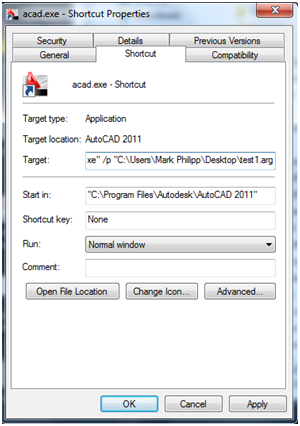
- Hit OK at the bottom
- Start AutoCAD and make sure the program boots into the profile you created.
NOTE: If your “Target” area is grayed out, then you will need to go to your Autodesk directory (by default C:Program FilesAutodeskAutoCAD 2011 and create a shortcut to acad.exe) Once you have the shortcut created, you should be able to modify the Target property.
Your ARG file can be located on the local hard drive or a network location if you prefer it. Some environments benefit greatly from putting an ARG file onto a network location that all of the clients can read from. This way, you can tell the software to point to the network location rather than having to put the ARG file on every single computer so they can read it. Just remember, if you are going to use a network location, specify the file path as such: /p \servernamedirectorydirectoryfile.arg
My profile went from this:
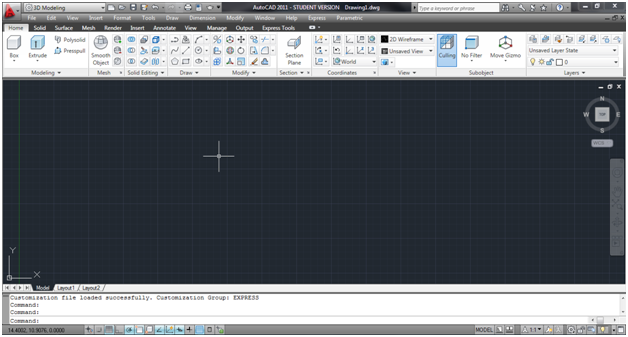
To this:
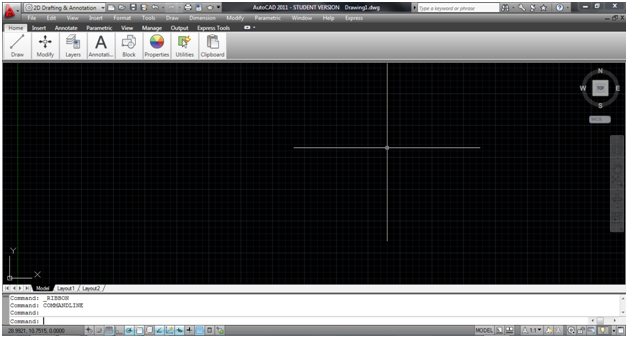
(No I don’t actually use AutoCAD like this)
Thank you!
Share this Post